Most developers configure their terminal once, early in their career, and then carry that configuration forward for a decade through copy-pasted dotfiles they no longer understand. There is a shell alias in my own setup whose purpose I could not explain under oath.
That is fine, mostly. The terminal is a tool you use for hours a day, so the cost of it being slightly wrong compounds quietly, but the cost of rebuilding it from scratch is an afternoon you would rather spend shipping something. The result is that terminal configuration tends to be either completely neglected or a hobby that consumes weekends, with very little in between.
This is the in-between. Four layers, what each one is genuinely responsible for, and a specific setup I would recommend to someone starting today, with the reasoning for each choice so you can disagree with it in an informed way. Not a feature matrix. The feature matrices in this category are useless, because almost every terminal emulator does the same things and the differences that matter are about latency, defaults and how much configuration you are willing to own.
One honest framing before the tools: nothing here will make you dramatically more productive. Terminal tooling is a small, constant tax reduction, applied to something you do a thousand times a day. It is worth an afternoon. It is not worth a month.
Key takeaways
- Four independent layers: emulator, multiplexer, shell, and commands. Change one at a time, because changing all four at once means you cannot tell which piece broke.
- GPU rendering mostly helps with large scrolling output. The latency you actually feel is usually your shell prompt running git commands on a large repository.
- The multiplexer earns its place if you work over SSH or want sessions that survive a closed window. Locally, it mostly duplicates what the emulator already does.
- The single highest-return change is the command replacement layer. Faster search, fuzzy history and smarter directory jumping pay back daily and cost nothing.
The four layers, and what each one is actually for
Terminal setups get confusing because people describe the whole stack as “my terminal”. It is four separate programs with distinct jobs, and knowing which layer owns a behaviour is most of the battle when something misbehaves.
The emulator draws characters and handles input. It owns the window, the font, the colours, the scrollback buffer, the clipboard, the mouse, and how fast a keystroke becomes a visible character. It does not know what a shell is. Tabs and split panes live here in most emulators, and they are a convenience rather than a core function.
The multiplexer sits between the emulator and the shell, and owns sessions. Its actual purpose, the one nothing else provides, is that a session keeps running when the connection to it goes away. Close the laptop, lose the VPN, kill the terminal window, and reattach later to the same processes in the same directories. Splits and tabs come along for the ride, but session persistence is the reason it exists.
The shell owns interaction: parsing what you type, completion, history, expansion, globbing, and scripting. This is the layer where the quality-of-life differences are biggest, because it is the layer you literally converse with. It is also the layer that determines whether a script you write today works on the server tomorrow.
The commands are the individual programs. The last decade produced faster, more legible replacements for a handful of the ones developers run constantly, and adopting them is the cheapest improvement available.
Configure these separately. A common and frustrating mistake is putting emulator concerns into the shell config, so that your prompt breaks when you SSH somewhere, or putting shell concerns into the multiplexer, so nothing works outside it.
What actually makes a terminal feel fast
Two different things get called performance in this category and only one of them is noticeable.
Throughput is how quickly the emulator can render a flood of output, the cat of a huge log file, a verbose build, a test suite printing thousands of lines. GPU-accelerated rendering helps here substantially, and it is what the benchmarks in this category measure because it is easy to measure. You encounter it when a build scrolls past.
Input latency is the delay between pressing a key and seeing the character. This is the one you feel all day, and it is much harder to attribute, because the emulator is only one contributor. The compositor, the display refresh rate, the font shaping work for ligatures, and whether the emulator waits for vsync all contribute. Differences between well-built emulators are small enough that your monitor’s refresh rate matters more.
And then there is the thing that is actually slow: your prompt. A prompt that shows git branch, dirty state, stash count and upstream divergence runs several git commands before every single prompt draw. On a small repository that is imperceptible. On a large repository, on a network filesystem, or in a directory with a hundred thousand untracked files, it is a visible stall before every command you type.
If your terminal feels sluggish, check the prompt before you change emulators. Most modern prompt tools have a timeout mechanism that abandons slow git queries rather than blocking, and turning that on fixes more perceived slowness than any GPU renderer will.
Two more things worth knowing:
- Scrollback costs memory, and an unbounded buffer with a very long build log in it is a surprising amount of RAM per pane. Multiply by however many panes you keep open.
- Ligatures and complex font shaping cost render time. If you like them, keep them, but know that a programming font with heavy ligature substitution is doing real work on every redraw.
Needs first-hand data: Time your own prompt. Run the prompt-render path in a large repository and in an empty directory and compare, then repeat inside a directory on a network or virtualised filesystem. Most people discover their prompt is the slowest part of their setup and that no emulator change would have helped.
A daily driver setup, and why each piece is there
Here is what I would set up for someone starting fresh today, with the reasoning. Take the reasoning, not the list.
Emulator: Ghostty on macOS or Linux. The argument is defaults. It is fast, it uses genuinely native UI on each platform rather than drawing its own approximation of one, and it works well with an empty configuration file. The last point is the one that matters most, because a terminal you had to configure for two hours is a terminal you have to reconfigure on every new machine. If you want an emulator you script and extend, WezTerm instead, and if you are on macOS with years of iTerm2 muscle memory, staying put is a completely reasonable decision that costs you nothing real.
Multiplexer: only if you SSH. If your work is local, your emulator already gives you tabs and splits, and adding a multiplexer means a second set of keybindings, a second scrollback implementation that fights with the emulator’s, and a second place for colour handling to go wrong. If you do work on remote machines, the multiplexer is not optional, because it is the only thing that keeps your session alive when the connection drops. Then: tmux if you will be on other people’s servers, Zellij if it is your own machine and you want the version that does not require learning a manual first.
Shell: fish for interactive use, bash for scripts. This is the split that resolves the usual argument. fish gives you autosuggestions from history, syntax highlighting as you type, and genuinely good tab completion without installing a framework or pasting a plugin manager into your config. Those three things are most of the day-to-day value of a shell.
The objection to fish is that its scripting is not POSIX-compatible, and that objection is correct and mostly irrelevant, because you should not be writing scripts in your interactive shell’s language anyway. Scripts get a #!/usr/bin/env bash shebang and run identically everywhere. Your interactive shell is a user interface, and scripts are software; they do not need to be the same thing.
If you administer machines where installing anything is a negotiation, zsh with a small set of plugins gets you close enough and is already the default on macOS.
Prompt: Starship, configured down. Cross-shell, fast, and the important part is the second half of that sentence: turn most of it off. A prompt showing every runtime version in your project is expensive to compute and tells you things you already know. Directory, git branch, git dirty indicator, exit code when nonzero, and a duration for slow commands. That is a prompt that earns its render cost.
Commands: install the replacement set on day one. ripgrep, fd, fzf, bat, eza and zoxide. This is the layer with the best return per minute spent, and specifically fzf wired into shell history is the single change most people notice within an hour.
Dotfiles: in a git repository from the first day. Not a framework, not a bootstrap script that installs forty things. A repository with your config files and a short readme saying what needs installing. The value shows up the first time you get a new laptop, and the cost of starting is five minutes.
What I would skip: the plugin frameworks that load a hundred modules into your shell startup, the elaborate multiplexer layouts that take longer to remember than to recreate by hand, and anything that requires a login to display text.
Needs first-hand data: Measure your own shell startup time, then bisect your config by commenting out half of it at a time until you find what costs the most. Opening a new tab is something you do dozens of times a day, and the usual culprits are a plugin framework loading modules you never use and a version manager initialising every runtime on your machine. Record the before and after so you know whether the afternoon was worth it.
Ghostty
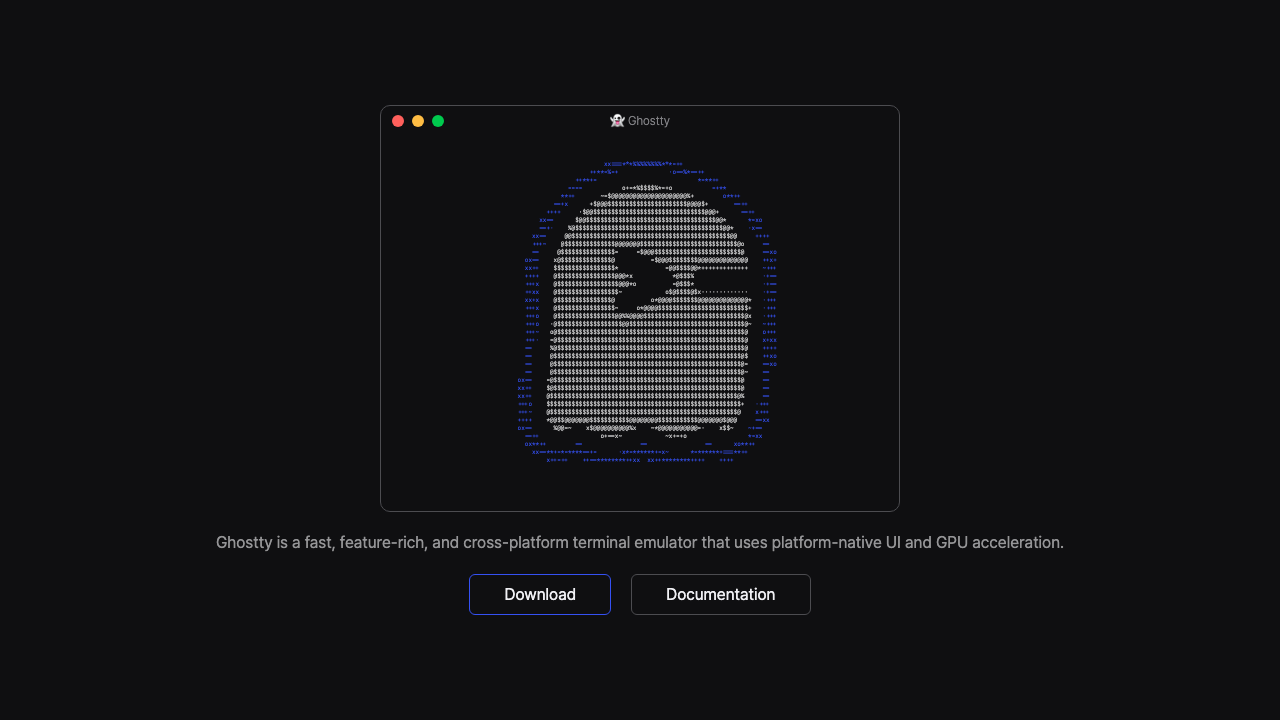
Ghostty is a GPU-accelerated terminal emulator written in Zig, built around the position that a terminal should use the platform’s real UI toolkit rather than drawing its own imitation. On macOS that means native windows, tabs and menus; on Linux it integrates with GTK. It is fast with default settings and configured through a simple key-value file, which makes it unusually easy to adopt without a configuration project.
Pros
- Excellent defaults, so it is usable and fast before you have written any configuration
- Native platform UI rather than a custom-drawn approximation, which shows in window management and text selection
- GPU rendering with solid throughput on large output, without a heavyweight runtime
- Simple flat configuration file that is easy to version and easy to reason about
Cons
- macOS and Linux only, so a Windows machine in your rotation needs a different emulator
- Younger than the incumbents, so ecosystem knowledge and third-party tooling are thinner
- Deliberately less extensible than the scriptable emulators, which is a limitation if you want programmable behaviour
Best for: Developers on macOS or Linux who want a fast terminal that is correct out of the box and do not want to maintain a configuration.
Pricing: No vendor and no bill. Ghostty is open source and free, with no account and no hosted component.
WezTerm
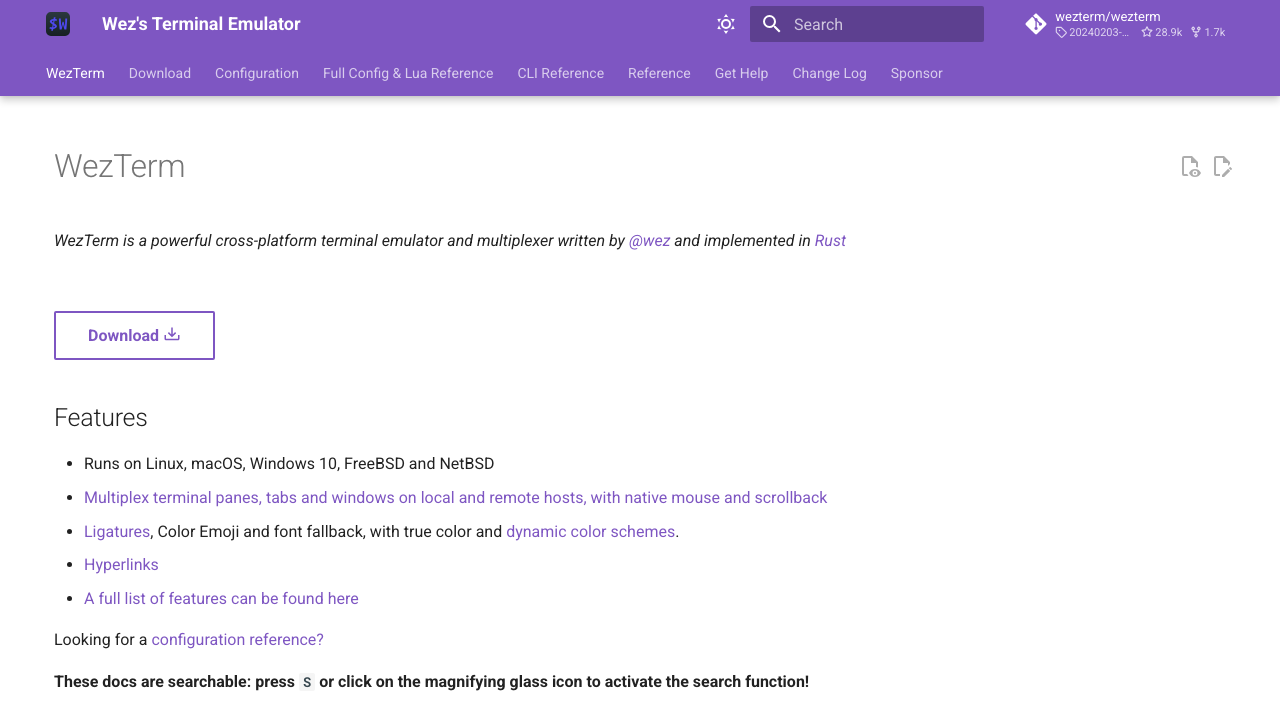
WezTerm is a cross-platform GPU-accelerated emulator written in Rust, configured in Lua, with a built-in multiplexer and the ability to attach to remote hosts as domains. That last capability is the interesting one: it can run a multiplexer server on a remote machine and render it locally, giving you persistence over SSH without running tmux on the far end. If you want an emulator you can program, this is the one.
Pros
- Lua configuration makes genuinely programmable behaviour possible, including dynamic settings and custom key handling
- Runs on macOS, Linux and Windows with the same configuration, which matters for mixed-machine setups
- Built-in multiplexing with remote domains, removing the need for a separate multiplexer in many workflows
- Strong font handling, including ligatures and fallback, with fine-grained control
Cons
- Lua configuration is powerful and is also a project, which is the opposite of what some people want from a terminal
- The extra features mean more surface area, and more places for behaviour to surprise you
- Startup and memory footprint are heavier than the minimalist options
Best for: Developers who want one scriptable terminal across macOS, Linux and Windows, and who will use the remote multiplexing.
Pricing: No vendor and no bill. WezTerm is open source and free.
Alacritty
Alacritty is the minimalist position taken seriously: a GPU-accelerated emulator in Rust that deliberately has no tabs, no splits, no scripting and no plugin system. The reasoning is that those belong to the multiplexer and the window manager, and that a terminal emulator should do one job with as little between your keystroke and the screen as possible. Paired with tmux or a tiling window manager it is a complete setup; used alone it will feel bare.
Pros
- Very small feature surface, which means few surprises and a tiny configuration
- Consistently among the fastest at rendering large output volumes
- Cross-platform across macOS, Linux and Windows with identical behaviour
- Long-established and stable, with a large body of community configuration to borrow from
Cons
- No tabs or splits by design, so it requires a multiplexer or a tiling window manager to be workable
- No scripting or extension mechanism at all
- Font and glyph handling is more basic than the feature-rich emulators, which shows with ligatures and emoji
Best for: Developers who already live in tmux or a tiling window manager and want the thinnest possible rendering layer beneath it.
Pricing: No vendor and no bill. Alacritty is open source and free.
Kitty
Kitty is a GPU-accelerated emulator with an unusually broad idea of what a terminal can do, including its own graphics protocol for displaying images inline, and a system of small helper programs called kittens for tasks like file transfer, diffing and SSH setup. It sits between the minimalists and the fully scriptable options, with tabs, splits and layouts built in.
Pros
- Inline image support through its own graphics protocol, which several tools now target
- Kittens provide useful built-in capability such as diffing and remote file transfer without extra software
- Built-in tabs, splits and layouts, so a multiplexer is often unnecessary locally
- Fast rendering with extensive configuration over performance behaviour
Cons
- Configuration is extensive and idiosyncratic, with its own conventions to learn
- The graphics protocol is not universally supported, so inline images work in some tools and not others
- No Windows build, so it cannot be your one cross-platform emulator
Best for: Linux and macOS developers who want built-in splits and inline images without adopting a multiplexer.
Pricing: No vendor and no bill. Kitty is open source and free.
iTerm2
iTerm2 is the long-standing macOS terminal and still the most feature-complete option on that platform: split panes, a searchable scrollback, triggers that act on matched output, shell integration that marks command boundaries, profiles, and a great deal more. It is the incumbent for good reason, and the main argument against it is that its feature depth comes with a heavier feel than the newer GPU-first emulators.
Pros
- Deepest feature set on macOS, including triggers, shell integration and command-boundary navigation
- Mature, stable and extremely well documented, with a decade of accumulated community knowledge
- Profiles and per-host configuration handle complex multi-environment workflows well
- Extensive keyboard and mouse customisation, including window arrangement restoration
Cons
- macOS only, so it cannot follow you to a Linux machine
- Rendering is generally less snappy under heavy output than the GPU-first emulators
- The preferences surface is enormous, and finding the setting you want is its own skill
Best for: macOS developers who use the advanced features, especially triggers and shell integration, and value maturity over rendering speed.
Pricing: No vendor and no bill. iTerm2 is free software for macOS.
Warp
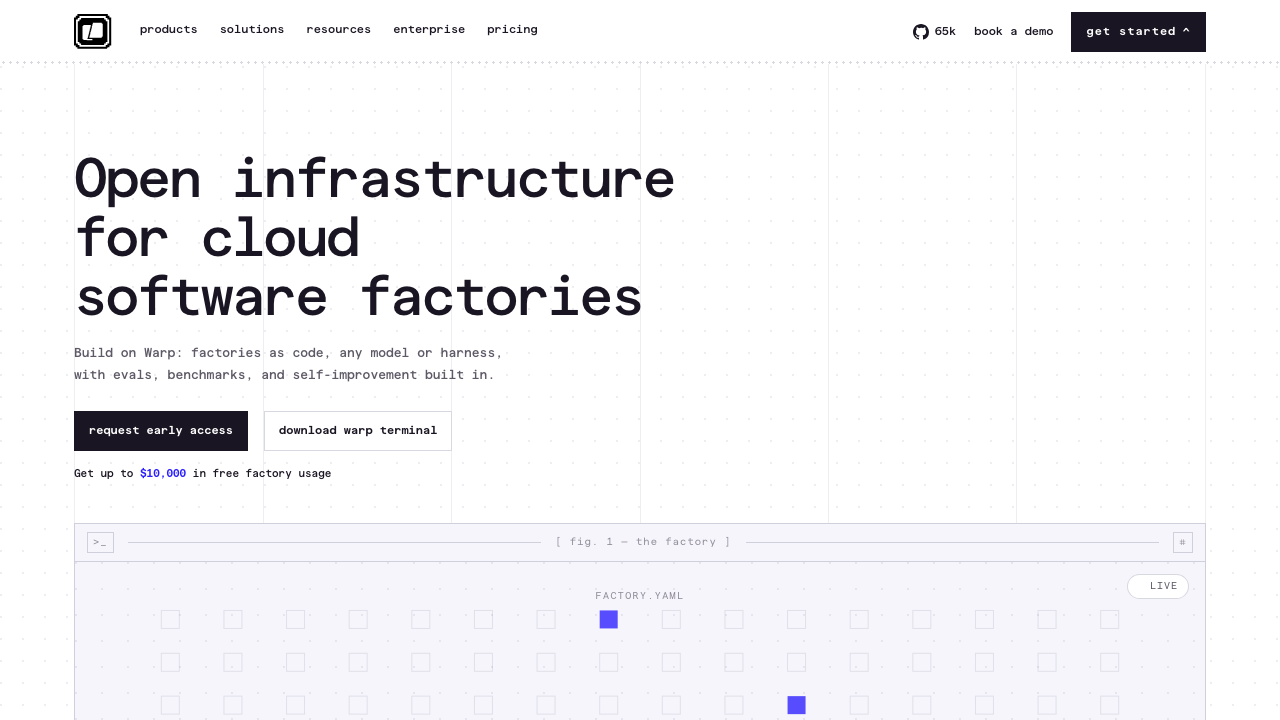
Warp rethinks the terminal as a modern application: command output is grouped into blocks you can select, share and navigate, editing works like a text editor rather than like readline, and AI assistance is built into the command line for generating and explaining commands. It is the most opinionated product here and the only commercial one, which brings the trade-off that defines it: an account and a network dependency in the place where you type production commands.
Pros
- Block-based output makes navigating, copying and sharing previous command results genuinely easier
- Modern text editing in the command line, with selection and cursor behaviour people already know
- Built-in command generation and explanation, useful for tools you use rarely
- Polished onboarding, which makes it the least intimidating option for someone new to the terminal
Cons
- Commercial product requiring an account, which is a hard no in many security-sensitive environments
- AI features involve sending context off the machine, and the terminal is where the most sensitive strings in your workflow live
- Opinionated interface diverges from standard terminal behaviour, which occasionally confuses tools expecting a conventional emulator
- You are dependent on a company’s roadmap for a tool you use every day
Best for: Developers who want a modern, guided command line experience and whose environment permits an account-backed tool.
Pricing: Free tier with paid subscription tiers per user for team features and higher AI usage limits.
Zellij
Zellij is a terminal multiplexer built around discoverability. It shows available keybindings on screen, ships with sensible defaults, supports layouts defined in configuration files, and has a plugin system built on WebAssembly. It does what tmux does, with a much shorter path from installing it to using it competently, at the cost of not being present on every machine you might SSH into.
Pros
- Visible keybinding hints mean you can be productive immediately without memorising a manual
- Session persistence and resurrection with a much friendlier interface than the alternatives
- Layouts defined declaratively, so a project workspace can be recreated with one command
- Floating panes and a plugin system for extending behaviour
Cons
- Not preinstalled anywhere, so on someone else’s server you are back to tmux
- Smaller ecosystem and a shorter track record than the incumbent
- Higher resource usage than tmux, which is noticeable on constrained remote machines
- Keybinding defaults conflict with common editor bindings, and resolving that is an early chore
Best for: Developers who want multiplexing on their own machines and never enjoyed learning tmux.
Pricing: No vendor and no bill. Zellij is open source and free.
tmux
tmux is the multiplexer that is already installed, or is one package-manager command away, on essentially every server you will ever touch. Its value proposition is not features, it is ubiquity plus the single capability that matters: a session that survives disconnection. Learning it is a career-long investment because the knowledge transfers to every machine, forever.
Pros
- Available or trivially installable everywhere, which makes it the only realistic choice for other people’s servers
- Rock-solid session persistence, the core reason multiplexers exist
- Very low resource footprint, suitable for small remote instances
- Enormous body of existing configuration, plugins and documentation
Cons
- Default keybindings are unfriendly, and the configuration syntax is genuinely arcane
- Scrollback, copy mode and clipboard integration fight with the emulator’s equivalents unless configured carefully
- Colour and terminal capability handling over SSH is a recurring source of frustration
- Nothing about it is discoverable, so the learning curve is entirely front-loaded
Best for: Anyone who regularly works on remote machines, which makes it less a preference than a requirement.
Pricing: No vendor and no bill. tmux is open source and free.
fish
fish is an interactive shell that ships with the features other shells require plugins to provide: autosuggestions from your history as you type, syntax highlighting that shows an invalid command in red before you run it, and completions generated from man pages. Recent versions have been reimplemented in Rust. Its scripting language is deliberately not POSIX-compatible, which is the standard objection and the main thing to understand before adopting it.
Pros
- Autosuggestions, syntax highlighting and strong completion work with zero configuration
- Cleaner, more consistent scripting language than the POSIX shells if you do write shell functions
- Sensible defaults throughout, which removes the need for a plugin framework
- Fast startup, because there is no stack of plugins to load
Cons
- Not POSIX-compatible, so shell snippets copied from documentation frequently need translation
- Scripts written in fish do not run on machines without fish, which is most machines
- Rarely the default anywhere, so remote hosts will drop you into something else
- Some tools assume a POSIX shell for their environment setup and need a fish-specific shim
Best for: Developers who want a good interactive experience immediately and are content to write scripts in bash.
Pricing: No vendor and no bill. fish is open source and free.
Zsh
Zsh is the default interactive shell on macOS and the pragmatic middle ground: close enough to bash that your muscle memory and most copied snippets work, extensible enough that plugins can add the autosuggestion and highlighting behaviour fish gives you natively. Starship pairs with it well, as it does with fish and bash, giving a fast cross-shell prompt configured in a single file.
Pros
- Largely POSIX-compatible, so existing scripts and copied commands generally work unchanged
- Already the default on macOS, meaning zero installation and no fight with system tooling
- Mature plugin ecosystem covering autosuggestions, syntax highlighting and completion
- Powerful completion system that is genuinely better than bash once configured
Cons
- The good interactive behaviour requires assembling plugins, which is a configuration project fish does not have
- Heavy plugin frameworks noticeably slow shell startup, and the popular ones are heavy
- Configuration accumulates over years into something nobody on the team can fully explain
- Startup file ordering is a recurring source of confusion about where a setting belongs
Best for: Developers who want POSIX compatibility and a good interactive experience, and accept assembling it from plugins.
Pricing: No vendor and no bill. Zsh and Starship are both open source, as are the common plugins.
ripgrep, fd, bat, eza, zoxide and fzf
These six replace commands you run dozens of times a day, and adopting them together is the highest-return change in this article. ripgrep searches file contents and respects gitignore by default, which removes most of the noise that makes plain grep frustrating in a repository. fd replaces find with an interface a human can remember. bat is cat with syntax highlighting and paging. eza lists directories with colour and git status. zoxide learns your directory habits so you can jump by fragment instead of typing paths. fzf is a fuzzy finder that becomes transformative once bound to shell history and file selection.
Pros
- Immediately faster and more legible than the tools they replace, with no configuration needed
- ripgrep respecting gitignore eliminates the biggest source of noise when searching a repository
- fzf bound to history search changes how you use the shell more than any other single change here
- All are single static binaries, so installing them anywhere is trivial
Cons
- Not present on servers, so muscle memory built on them fails exactly when you are troubleshooting in production
- Aliasing the classic names to these tools breaks scripts that expect the original behaviour and flags
- eza is the maintained continuation of an earlier project, so older guides reference a name that is no longer current
- Six separate tools means six separate upgrade paths on every machine you use
Best for: Every developer, on their own machine, with the classic commands left unaliased so remote work stays familiar.
Pricing: No vendor and no bill. All six are open source and free, distributed as single binaries through the usual package managers.
How to choose
Work down the layers and stop when the answer is good enough, because the return diminishes quickly.
Emulator. Ghostty if you want good defaults on macOS or Linux. WezTerm if you want it scriptable or need Windows. Alacritty if you already use a multiplexer or tiling window manager and want nothing else. Kitty if inline images or built-in layouts appeal. iTerm2 if you are on macOS and already happy. Warp if you want a guided modern experience and your environment allows an account-backed tool.
Multiplexer. tmux if you SSH into machines you do not control. Zellij if the machines are yours. Neither, if your work is local and your emulator has splits.
Shell. fish for a good interactive experience with no assembly. Zsh if POSIX compatibility matters or you are on macOS and want to change nothing. Write scripts in bash either way.
Commands. All six, today, unaliased. This is the part with no downside.
| Layer | Pick this by default | Pick the alternative when |
|---|---|---|
| Emulator | Ghostty | You need Windows or scripting, then WezTerm |
| Emulator, minimal | Alacritty | You already run a multiplexer or tiling WM |
| Multiplexer | tmux | Only your own machines matter, then Zellij |
| Multiplexer | None | Local work only and your emulator has splits |
| Shell | fish | POSIX compatibility matters, then Zsh |
| Prompt | Starship, trimmed down | You want no prompt latency at all, then a static prompt |
| Commands | ripgrep, fd, bat, eza, zoxide, fzf | Never; install them all |
Change one layer at a time and live with it for a week before changing the next. The failure mode of terminal configuration is swapping four things on a Saturday and spending the following Tuesday debugging colour handling with no idea which change caused it. Keep the dotfiles in git so you can bisect your own decisions.
Where this connects to the rest of the toolchain: your terminal is increasingly also where AI coding tools run, since several of them are command line programs rather than editor extensions, and the hub at AI coding assistants covers that shift. For the environment your terminal opens into, local development environment tools covers the layer below this one.
Frequently asked questions
Does a GPU-accelerated terminal actually make a difference?
For rendering large volumes of output, yes, noticeably. For the keystroke-to-character latency you feel while typing, the differences between well-built emulators are smaller than the difference your monitor refresh rate makes. Before switching emulators for speed, time your shell prompt in a large repository, because a prompt running several git commands per draw is the most common cause of a terminal that feels slow.
Do I still need tmux if my terminal has tabs and splits?
Only for session persistence. If you work over SSH, tmux is the thing that keeps your processes running when the connection drops, and no emulator feature replaces that. If your work is local, a multiplexer mostly duplicates what your emulator already does while adding a second keybinding scheme and a second scrollback buffer that fights with the first. Local-only developers can reasonably skip it.
Is fish worth switching to given it is not POSIX-compatible?
For interactive use, yes, and the incompatibility matters less than it sounds because you should not write portable scripts in your interactive shell’s language regardless. Give scripts a bash shebang and they run anywhere. What you actually give up is that snippets copied from documentation sometimes need translating, and that remote machines will not have fish. Both are minor next to autosuggestions and highlighting that work with no setup.
Should I use a shell framework like a plugin manager?
Only if you know which plugins you need and why. The popular frameworks load a large number of modules at shell startup, which is the most common cause of a shell that takes a second to open a new tab. Adding two or three specific plugins directly is faster, easier to debug, and easier to explain to yourself in two years.
What is the fastest improvement I can make in ten minutes?
Install fzf and bind it to shell history search, then install ripgrep. History search by fuzzy match changes how you use the terminal within an hour, and ripgrep respecting gitignore removes most of the noise that makes searching a repository unpleasant. Neither needs configuration and neither changes anything else about your setup.
Related reading
- Best AI coding assistants — the hub, including the command line tools that now live in this same window.
- Best local development environment tools — the environment layer your shell opens into.
- Best cloud development environments — what changes when the shell is running somewhere else.
- Best code search tools — where ripgrep stops being enough and an index starts paying off.
- Best developer onboarding tools — getting a new machine to a working setup, which is what your dotfiles repository is for.
- Best MCP servers for development workflows — the other way command line tooling is being extended right now.